
Security
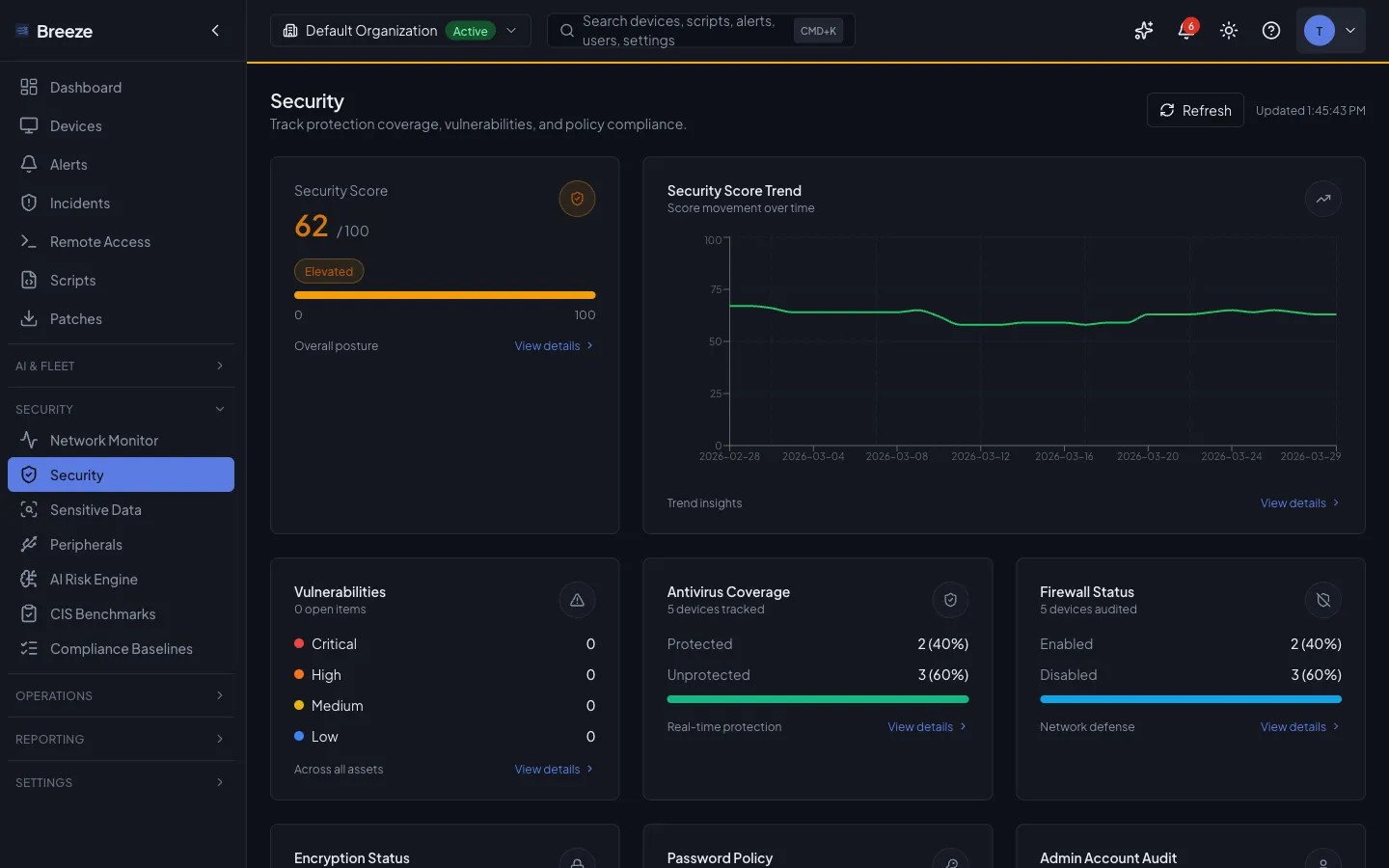
The Security module provides continuous visibility into the security posture of every managed device. The Breeze agent collects antivirus status, firewall state, disk encryption details, local administrator accounts, and password policy configuration from each endpoint. That data flows into the API where it is scored, trended, and surfaced through a unified dashboard. When the agent detects threats during a scan, those threats can be quarantined or removed directly from the console. A built-in recommendations engine analyzes posture data across the fleet and produces prioritized, actionable guidance to reduce risk.
Admin IP Allowlist
Section titled “Admin IP Allowlist”Partner admins can restrict dashboard access to specific source IP addresses or CIDR ranges from Settings -> Security -> IP Allowlist. The allowlist is partner-level: once configured, authenticated dashboard requests and password login attempts for that partner are checked before access continues. Agent endpoints use separate agent authentication and are not affected.
The allowlist requires working proxy trust. In production, set TRUST_PROXY_HEADERS=true and configure TRUSTED_PROXY_CIDRS so the API trusts only your reverse proxy hop, such as Caddy behind Cloudflare Tunnel. If Breeze cannot determine a trusted client IP, the allowlist fails open and reports inactive status instead of creating a false lockout guarantee. See Environment Variables for the proxy trust and IP_ALLOWLIST_ENFORCEMENT_MODE settings.
Platform administrators bypass the partner allowlist as a break-glass path, and each bypass is audited. Operators can also set IP_ALLOWLIST_ENFORCEMENT_MODE=off to globally disable enforcement during an emergency, then return it to enforce after correcting the partner settings.
Security Status
Section titled “Security Status”The agent reports a SecurityStatus payload on each heartbeat. The payload includes the detected AV provider, real-time protection state, definition freshness, firewall status, disk encryption status, local admin accounts, and password policy configuration.
Collected Fields
Section titled “Collected Fields”| Field | Description |
|---|---|
provider |
Normalized security provider identifier (e.g. windows_defender, bitdefender) |
providerVersion |
Version string of the installed AV product |
definitionsVersion |
Virus definition / signature version |
definitionsDate |
Timestamp of the most recent definitions update |
realTimeProtection |
Whether real-time scanning is active |
lastScan |
Timestamp of the most recent completed scan |
lastScanType |
Type of last scan: quick, full, or custom |
threatCount |
Number of active threats on the device |
firewallEnabled |
Whether the host firewall is active |
encryptionStatus |
Disk encryption state: encrypted, partial, or unencrypted |
encryptionDetails |
Per-volume encryption breakdown (method, mount point, protection status) |
localAdminSummary |
Local administrator account inventory with issue flags |
passwordPolicySummary |
Password policy settings (min length, complexity, lockout, history) |
gatekeeperEnabled |
macOS Gatekeeper status (macOS only) |
Detection Methods by Platform
Section titled “Detection Methods by Platform”- AV detection: Windows Security Center (
root/SecurityCenter2) via CIM, with fallback toGet-MpComputerStatusfor Windows Server - Firewall:
Get-NetFirewallProfilequeries all three profiles (Domain, Private, Public) - Encryption:
Get-BitLockerVolumereads BitLocker protection status and encryption percentage per volume - Local admins:
Get-LocalGroupMember -Group 'Administrators'enumerates the local Administrators group - Password policy:
Win32_AccountPolicyCIM class reads min length, max age, lockout threshold, and history count
- AV detection: Microsoft Defender for Endpoint via
mdatp health --output json, with app bundle fallback - Gatekeeper:
spctl --statuschecks Gatekeeper enforcement state - Firewall:
socketfilterfw --getglobalstateordefaults read com.apple.alf globalstate - Encryption:
fdesetup statusdetects FileVault state - Local admins:
dscl . -read /Groups/admin GroupMembershiplists admin group members - Password policy:
pwpolicy -getglobalpolicyparses min chars, complexity, lockout, and history
- Firewall: Checks
ufw status,firewall-cmd --state, andsystemctl is-active firewalldin order - Encryption:
lsblk -Jwalks the block device tree looking forcrypttype entries (LUKS) - Local admins:
getent group sudoorgetent group wheelenumerates privileged group members - Password policy: Parses
/etc/login.defsfor min length and max age, checks PAM modules for complexity, and reads/etc/security/faillock.conffor lockout threshold
Supported Providers
Section titled “Supported Providers”The agent normalizes detected AV products to one of the following provider identifiers. On Windows, multiple AV products may be registered simultaneously through the Security Center.
| Provider ID | Display Name | Vendor |
|---|---|---|
windows_defender |
Microsoft Defender | Microsoft |
elastic_defend |
Elastic Defend | Elastic |
bitdefender |
Bitdefender | Bitdefender |
sophos |
Sophos | Sophos |
sentinelone |
SentinelOne Singularity | SentinelOne |
crowdstrike |
CrowdStrike Falcon | CrowdStrike |
malwarebytes |
Malwarebytes | Malwarebytes |
eset |
ESET | ESET |
kaspersky |
Kaspersky | Kaspersky |
other |
Other | Other |
Threat Detection
Section titled “Threat Detection”Threat Types and Severity
Section titled “Threat Types and Severity”The agent scans for known threat signatures using both filename pattern matching and file content analysis. Detected threats are classified by type and severity:
| Threat Type | Description |
|---|---|
malware |
General malicious software (e.g. Mimikatz, EICAR test file) |
trojan |
Trojan horse programs (e.g. Emotet, Trickbot) |
ransomware |
Ransomware indicators (e.g. ransom notes, decryption instructions) |
spyware |
Spyware and surveillance tools |
pup |
Potentially unwanted programs |
| Severity | Meaning |
|---|---|
low |
Minimal risk; informational detection |
medium |
Moderate risk; should be reviewed |
high |
Significant risk; prompt action recommended (e.g. Mimikatz, EICAR, ransomware notes) |
critical |
Severe risk; immediate action required (e.g. CobaltStrike beacons, Emotet) |
Threat Status Lifecycle
Section titled “Threat Status Lifecycle”Each threat progresses through a status lifecycle:
| Status | DB Status | Description |
|---|---|---|
| Active | detected, failed |
Threat is present and unresolved |
| Quarantined | quarantined |
Threat file moved to an isolated quarantine directory |
| Removed | removed, allowed |
Threat file deleted or explicitly allowed |
Threat Actions
Section titled “Threat Actions”You can take action on detected threats directly from the API:
# Quarantine a threat (moves file to quarantine directory)POST /security/threats/{threatId}/quarantine
# Permanently remove a threatPOST /security/threats/{threatId}/remove
# Restore a quarantined threat (mark as allowed)POST /security/threats/{threatId}/restore
Each action queues a command to the agent and updates the threat status in the database. The quarantine directory defaults to:
| Platform | Path |
|---|---|
| Windows | %ProgramData%\Breeze\quarantine |
| macOS | /Library/Application Support/Breeze/quarantine |
| Linux | /var/lib/breeze/quarantine |
Security Scans
Section titled “Security Scans”Triggering a Scan
Section titled “Triggering a Scan”Initiate an on-demand security scan on a specific device by posting to the scan endpoint:
POST /security/scan/{deviceId}{ "scanType": "quick", "paths": []}| Scan Type | Description |
|---|---|
quick |
Scans high-risk locations: temp directories, Downloads folder, startup/launch directories |
full |
Comprehensive scan of all major system locations (entire drives on Windows, /Applications, /Library, /Users on macOS, / tree on Linux) |
custom |
Scans only the paths specified in the paths array |
The scan is queued as a SECURITY_SCAN command to the agent. The response returns a scan record with status queued and a 202 Accepted status code.
Scan Lifecycle
Section titled “Scan Lifecycle”| Status | Description |
|---|---|
queued |
Scan command sent to the agent, waiting for execution |
running |
Agent is actively scanning |
completed |
Scan finished; results include threatsFound count and durationSeconds |
failed |
Scan encountered an error |
Viewing Scan History
Section titled “Viewing Scan History”GET /security/scans/{deviceId}?scanType=quick&status=completed&startDate=2026-02-01Returns paginated scan history for the device, filterable by scanType, status, and date range.
Compliance and Posture
Section titled “Compliance and Posture”Security Posture Scoring
Section titled “Security Posture Scoring”The security posture system computes a 0-100 score for each device based on eight weighted factors:
| Factor | Label | Weight | Description |
|---|---|---|---|
patch_compliance |
Patch Compliance | 25% | Are critical and important patches up to date? |
encryption |
Disk Encryption | 15% | Is full-disk encryption active on all volumes? |
av_health |
AV Health | 15% | Is AV installed, real-time protection on, and definitions fresh? |
firewall |
Firewall Status | 10% | Is the host firewall enabled? |
open_ports |
Open Ports Exposure | 10% | Are unnecessary listening services exposed? |
password_policy |
Password Policy | 10% | Does the local password policy meet baseline requirements? |
os_currency |
OS Currency | 10% | Is the operating system version current and supported? |
admin_exposure |
Admin Exposure | 5% | Are local admin accounts minimized and hardened? |
The overall score is graded on a letter scale:
| Grade | Score Range |
|---|---|
| A | 90 - 100 |
| B | 80 - 89 |
| C | 70 - 79 |
| D | 60 - 69 |
| F | 0 - 59 |
Risk Levels
Section titled “Risk Levels”Each device is assigned a risk level based on its posture:
| Risk Level | Meaning |
|---|---|
low |
Device is fully protected (score high, no active issues) |
medium |
Minor gaps detected (e.g. firewall off or encryption missing) |
high |
Multiple protection gaps or elevated threat count |
critical |
Severe exposure: unprotected with active threats |
Organization-Level Posture
Section titled “Organization-Level Posture”The posture worker runs hourly via BullMQ, computing scores for every device across all organizations. Organization-level snapshots aggregate:
devicesAudited– total devices scoredlowRiskDevices,mediumRiskDevices,highRiskDevices,criticalRiskDevices– risk distribution- Per-factor average scores
topIssues– most common compliance gaps
Password Policy Compliance
Section titled “Password Policy Compliance”The API evaluates each device’s local password policy against baseline requirements:
| Rule | Requirement |
|---|---|
| Minimum length | 12+ characters |
| Complexity required | Enabled |
| Maximum password age | 90 days or fewer |
| Account lockout threshold | 1-5 failed attempts |
| Password history | 5+ remembered passwords |
A device is compliant only if all five checks pass.
Admin Account Audit
Section titled “Admin Account Audit”The admin audit identifies three categories of risk in local administrator accounts:
| Issue Type | Description |
|---|---|
default_account |
Built-in administrator accounts that are still enabled |
weak_password |
Admin accounts with passwords older than 180 days |
stale_account |
Admin accounts with no login activity in 90+ days |
Compliance Trend Tracking
Section titled “Compliance Trend Tracking”GET /security/trends?period=30dReturns time-series data points showing how the overall posture score has changed over the requested period (7d, 30d, or 90d). The response includes a summary with current score, previous score, absolute change, and directional trend (improving, declining, or stable).
Security Recommendations
Section titled “Security Recommendations”The recommendations engine analyzes posture data across the fleet and generates prioritized, actionable guidance. Recommendations are computed dynamically based on how many devices fall below threshold scores for each security factor.
How Recommendations Are Generated
Section titled “How Recommendations Are Generated”- The engine loads the latest posture snapshots for all devices in the organization.
- For each security factor, it counts devices scoring below the target threshold (e.g. AV health below 80, firewall below 90).
- If any devices are affected, a recommendation is generated with priority scaled to the percentage of the fleet impacted.
- Recommendations are sorted by priority (critical first), then by affected device count.
Recommendation Categories
Section titled “Recommendation Categories”| Category | Trigger Threshold | Baseline Priority |
|---|---|---|
antivirus |
AV health score below 80 | High |
vulnerability_management |
Active threats + open ports/OS currency below 70 | Critical |
firewall |
Firewall score below 90 | High |
encryption |
Encryption score below 90 | High |
password_policy |
Password policy score below 85 | Medium |
admin_accounts |
Admin exposure score below 85 | Medium |
patch_compliance |
Patch compliance score below 90 | High |
Priority Escalation
Section titled “Priority Escalation”Priority is dynamically escalated based on what percentage of the fleet is affected:
| Fleet % Affected | Dynamic Priority |
|---|---|
| 45%+ | Critical |
| 25-44% | High |
| 10-24% | Medium |
| Under 10% | Low |
The final priority is the higher of the baseline priority and the dynamic priority.
Recommendation Lifecycle
Section titled “Recommendation Lifecycle”Each recommendation can be in one of three states:
| Status | Description |
|---|---|
open |
Active recommendation requiring attention |
completed |
Marked as resolved by an administrator |
dismissed |
Acknowledged but not acted upon |
Completing or dismissing a recommendation creates an audit log entry. To mark a recommendation:
# Mark as completedPOST /security/recommendations/{id}/complete
# DismissPOST /security/recommendations/{id}/dismissSecurity Dashboard
Section titled “Security Dashboard”The dashboard endpoint aggregates all security data into a single response for rendering the security overview UI.
GET /security/dashboard?orgId={orgId}Dashboard Response Fields
Section titled “Dashboard Response Fields”| Field | Description |
|---|---|
totalDevices |
Total number of devices with posture data |
protectedDevices |
Devices with low risk and online status |
atRiskDevices |
Devices with medium or high risk |
unprotectedDevices |
Devices with critical risk level |
offlineDevices |
Devices not currently reporting |
totalThreatsDetected |
Total threat count across all devices |
activeThreats |
Threats in active status |
quarantinedThreats |
Threats currently quarantined |
removedThreats |
Threats that have been removed |
securityScore |
Fleet-wide average posture score (0-100) |
providers |
AV provider distribution with device counts and coverage percentages |
firewallEnabled / firewallDisabled |
Firewall state counts |
encryption |
BitLocker and FileVault enabled counts |
passwordPolicyCompliance |
Average password policy factor score |
adminAudit |
Summary of default/weak/stale admin account issues with top affected devices |
recommendations |
Top security recommendations with priority and category |
trend |
30-day score trend as timestamp/score data points |
Score Breakdown
Section titled “Score Breakdown”For a detailed per-factor breakdown, use the score breakdown endpoint:
GET /security/score-breakdownReturns each posture component with its score, weight, status (good/warning/critical), and the count of affected devices below the threshold.
Disk Encryption & Recovery Keys
Section titled “Disk Encryption & Recovery Keys”Breeze tracks disk-encryption status across your fleet and can escrow each device’s recovery key — so when a user is locked out of a BitLocker (Windows) or FileVault (macOS) volume, you retrieve the key from Breeze instead of hunting through spreadsheets or Active Directory.
Encryption overview
Section titled “Encryption overview”The Encryption page (under Security) lists every device with its encryption method (BitLocker, FileVault, LUKS, or None), status (Encrypted, Partial, Unencrypted), TPM presence, and whether a recovery key has been escrowed. Filter by status, operating system, or escrow state (Key escrowed / Key missing) to find machines that are protected but whose recovery key isn’t yet on file.
Recovery keys on a device
Section titled “Recovery keys on a device”Open a device’s Security tab to see its Recovery Keys panel:
- Collect now — asks the agent to report the device’s current recovery key. The request is queued and runs the next time the device is online.
- Rotate key — requests a new recovery key be generated and escrowed (where the platform supports rotation).
- Reveal — shows an escrowed key’s value. Every reveal is recorded in an audit trail.
Recovery keys are stored encrypted at rest. Access is org-scoped, and each time a key is collected, revealed, or rotated the action is written to a recovery-key access log so you retain a full history of who saw which key and when.
Recovery-key API
Section titled “Recovery-key API”# List escrowed recovery keys for a deviceGET /security/encryption/devices/:deviceId/recovery-keys
# Reveal a specific key (audited)POST /security/encryption/devices/:deviceId/recovery-keys/:keyId/reveal
# Ask the agent to collect/report the device's keyPOST /security/encryption/devices/:deviceId/recovery-keys/collect
# Request key rotationPOST /security/encryption/devices/:deviceId/recovery-keys/rotateSecurity Policies
Section titled “Security Policies”Security policies define the expected AV/EDR configuration (scan schedule, real-time protection, auto-quarantine, exclusions) for devices.
Policy Ownership: Organization vs. Partner-Wide
Section titled “Policy Ownership: Organization vs. Partner-Wide”A security policy is owned at one of two scopes, chosen when the policy is created and fixed for the life of the policy:
- This organization only — the default. The policy applies only to devices in the organization it was created for.
- All organizations (partner-wide template) — the policy applies to devices in every organization you manage. Use this for a baseline AV/EDR posture you want enforced everywhere without recreating the policy per customer.
In the Security Policy Editor, partner-level users see a Scope selector when creating a new policy — choose All organizations or This organization only. The selector only appears on create; ownership cannot change afterward.
Creating, editing, or deleting a partner-wide security policy requires a partner-level user with full access to every organization under the partner (not a user restricted to a subset of organizations). Users without that access can still see partner-wide policies but cannot modify or delete them.
# Create a policyPOST /security/policies{ "name": "Standard Endpoint Policy", "description": "Baseline security policy for all workstations", "providerId": "windows_defender", "scanSchedule": "weekly", "realTimeProtection": true, "autoQuarantine": true, "severityThreshold": "medium", "exclusions": ["C:\\Temp\\build"]}To create a partner-wide policy instead, add "ownerScope": "partner" to the request body — no orgId is needed, since the partner is derived from your login.
| Setting | Default | Description |
|---|---|---|
ownerScope |
organization |
organization (default) or partner. Create-only — cannot be changed by a later update |
scanSchedule |
weekly |
Scheduled scan frequency: daily, weekly, monthly, or manual |
realTimeProtection |
true |
Whether real-time protection should be enforced |
autoQuarantine |
true |
Automatically quarantine threats at or above the severity threshold |
severityThreshold |
medium |
Minimum severity to trigger auto-quarantine: low, medium, high, critical |
exclusions |
[] |
File paths to exclude from scanning |
API Reference
Section titled “API Reference”All security endpoints require authentication and are scoped to organization, partner, or system roles.
| Method | Endpoint | Description |
|---|---|---|
GET |
/security/status |
List security status for all devices (filterable by provider, status, risk level, OS) |
GET |
/security/status/:deviceId |
Get security status for a specific device |
GET |
/security/threats |
List all detected threats (filterable by severity, status, category, provider, date range) |
GET |
/security/threats/:deviceId |
List threats for a specific device |
POST |
/security/threats/:id/quarantine |
Quarantine a detected threat |
POST |
/security/threats/:id/remove |
Remove a detected threat |
POST |
/security/threats/:id/restore |
Restore a quarantined threat |
POST |
/security/scan/:deviceId |
Trigger an on-demand security scan |
GET |
/security/scans/:deviceId |
List scan history for a device |
GET |
/security/posture |
List security posture for all devices (filterable by score range, risk level) |
GET |
/security/posture/:deviceId |
Get detailed posture for a specific device |
GET |
/security/dashboard |
Get aggregated security dashboard data |
GET |
/security/score-breakdown |
Get per-factor score breakdown |
GET |
/security/trends |
Get posture score trend over time (7d, 30d, 90d) |
GET |
/security/firewall |
List firewall status per device with profile details |
GET |
/security/encryption |
List encryption status per device with volume details |
GET |
/security/password-policy |
List password policy compliance per device |
GET |
/security/admin-audit |
Audit local admin accounts across the fleet |
GET |
/security/recommendations |
Get prioritized security recommendations |
POST |
/security/recommendations/:id/complete |
Mark a recommendation as completed |
POST |
/security/recommendations/:id/dismiss |
Dismiss a recommendation |
GET |
/security/policies |
List security policies for the organization. Partner-scoped tokens also see their own partner-wide policies |
POST |
/security/policies |
Create a new security policy. Accepts ownerScope: "organization" (default) or "partner" |
PUT |
/security/policies/:id |
Update an existing security policy. Does not accept ownerScope — ownership is immutable. Updating a partner-wide policy requires full partner org access |
Troubleshooting
Section titled “Troubleshooting”Agent reports provider: "other"
Section titled “Agent reports provider: "other"”The agent could not detect a known AV provider. Common causes:
- Windows: The AV product is not registered with Windows Security Center. This can happen with server-only installations or EDR tools that do not register as AV. The agent will still attempt to query Defender directly as a fallback.
- macOS: Microsoft Defender for Endpoint is not installed, or the
mdatpCLI is not inPATH. Verify installation withwhich mdatpand check the app bundle exists at/Applications/Microsoft Defender.app. - Linux: The agent does not currently detect Linux AV providers. The provider will always be
otheron Linux endpoints.
Encryption status shows unknown
Section titled “Encryption status shows unknown”The agent failed to query the encryption subsystem. Check:
- Windows: Ensure the device has BitLocker support and the
Get-BitLockerVolumecmdlet is available. Requires admin privileges. - macOS: Ensure
fdesetupis accessible. The agent runsfdesetup statuswhich requires appropriate permissions. - Linux: Ensure
lsblkis installed. LUKS detection looks forcrypttype entries in the block device tree.
Firewall status not detected
Section titled “Firewall status not detected”- Windows: The agent queries
Get-NetFirewallProfile. If all three profiles (Domain, Private, Public) returnFalse, the firewall is reported as disabled. - macOS: The agent checks
socketfilterfw --getglobalstatefirst, then falls back to readingcom.apple.alfpreferences. - Linux: The agent checks
ufw,firewall-cmd, andsystemctl is-active firewalldin order. If none are available, firewall status cannot be determined.
Posture score is 0 or not available
Section titled “Posture score is 0 or not available”The posture worker runs on an hourly schedule via BullMQ. If no posture data is available:
- Confirm the security posture worker is running (check logs for
[SecurityPostureWorker] Security posture worker initialized). - Verify the device has reported at least one
SecurityStatuspayload via heartbeat. - Check that Redis is connected and the
security-posturequeue is processing jobs.
Threats not appearing after scan
Section titled “Threats not appearing after scan”- Verify the scan status is
completedby checkingGET /security/scans/:deviceId. - The agent’s built-in scanner uses a limited set of known signatures (EICAR, Mimikatz, CobaltStrike, Emotet, ransomware notes). It does not perform heuristic or behavioral analysis.
- Files larger than 25 MB are skipped during scanning. Content pattern matching reads only the first 1 MB of each file.
- Quarantine directories and system paths (e.g.
/proc,/sys,WinSxS,$Recycle.Bin) are excluded by default.